Request a Temporary Parking Pass
- Access the University of Indianapolis (UIndy) Parking Portal. Use any of these browsers: Chrome, Internet Explorer, MS Edge, Safari or Firefox
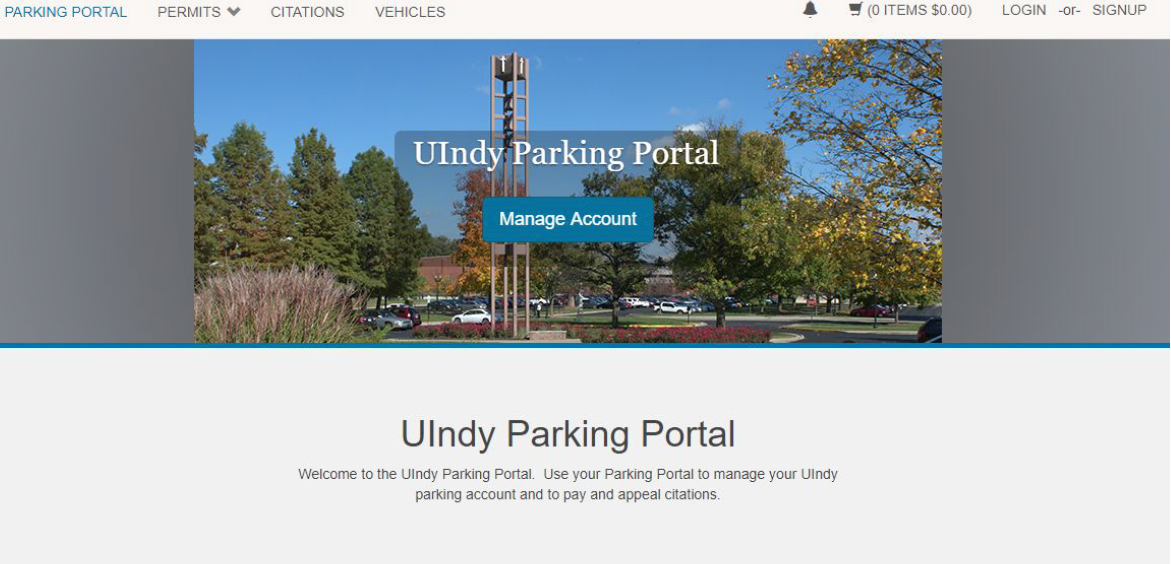
- Click the LOGIN button located on the top right corner of the screen.
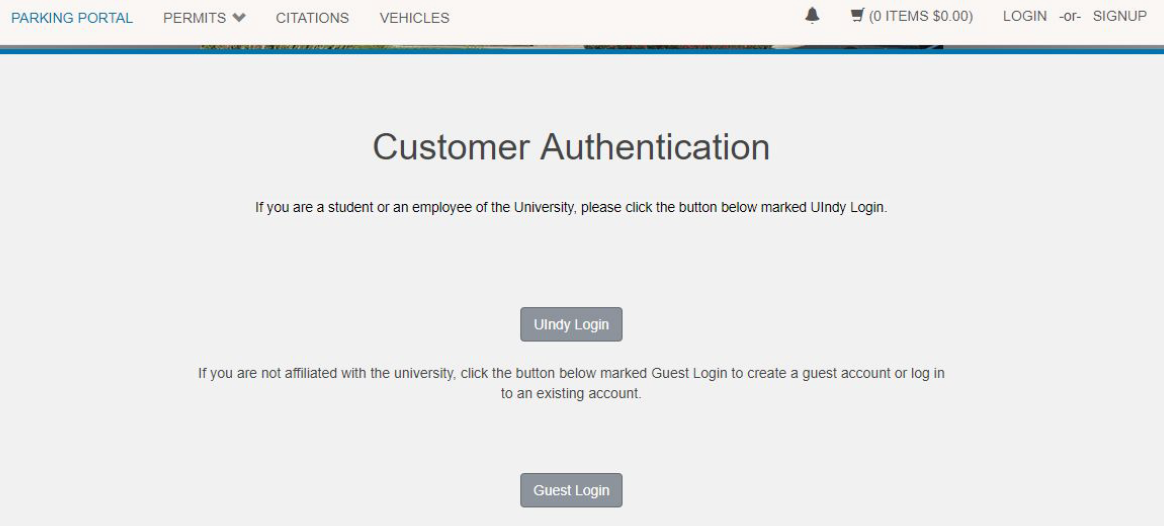
- UIndy employees and students will click on the UIndy Login button and use their UIndy username and password to access their account. Visitors must click on the Signup button (top right corner of the screen) to create a Guest Account before signing in.
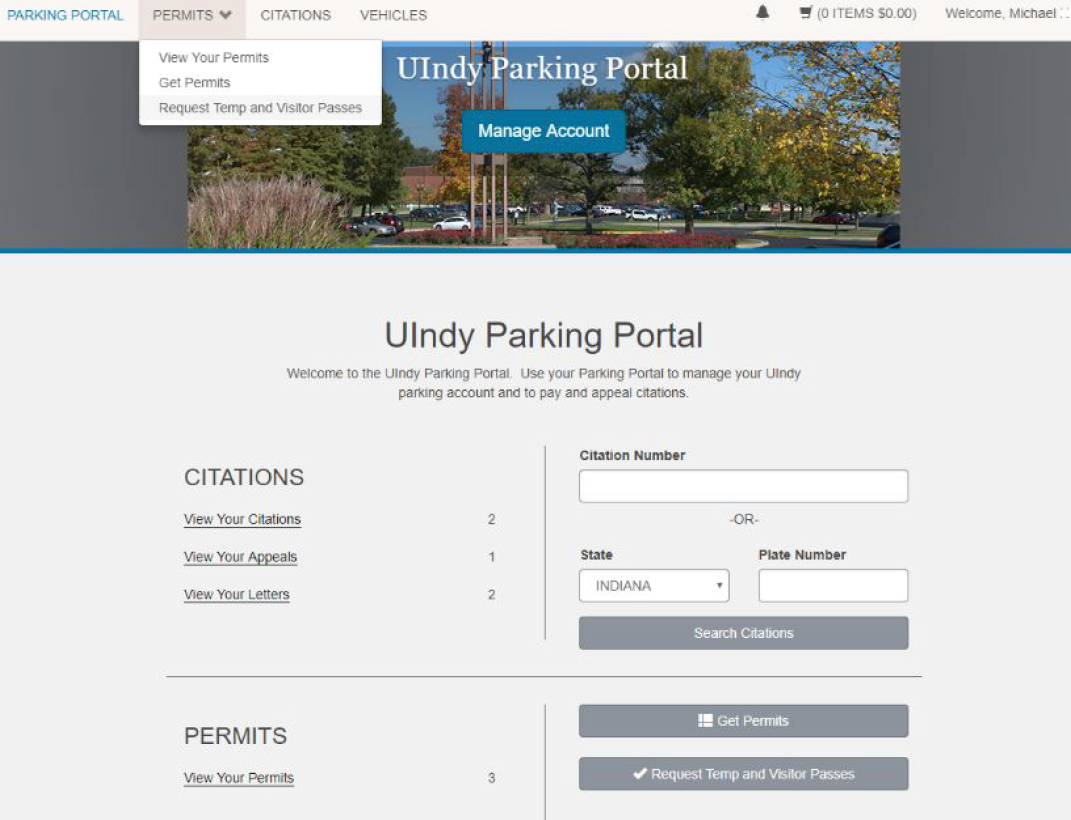
- Click on Permits > Request Temp and Visitor Passes on the top left side of the screen.

- Select Permit Request - Temp Pass. Accept the terms of the agreement and then click Next.
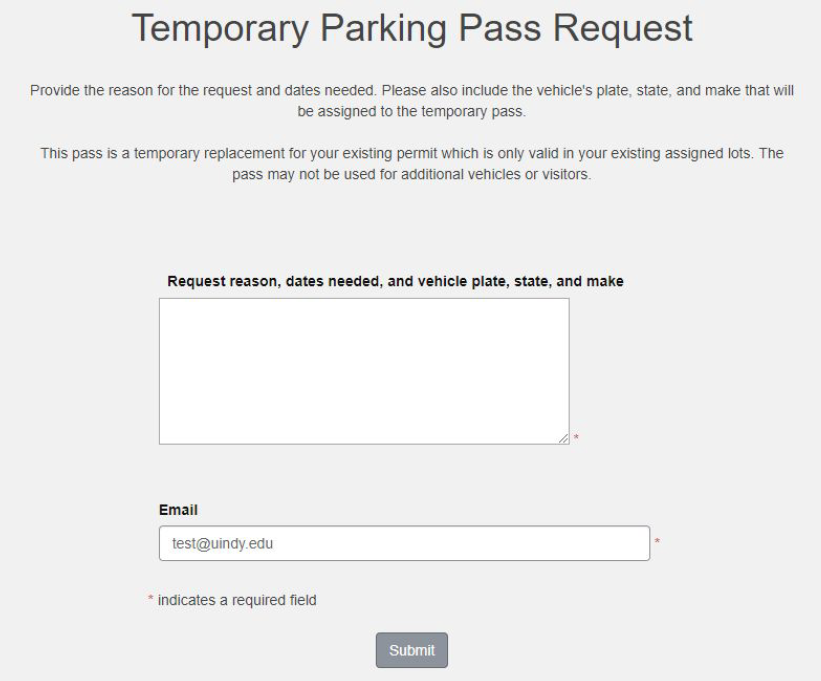
- Complete the requested information and click Submit.
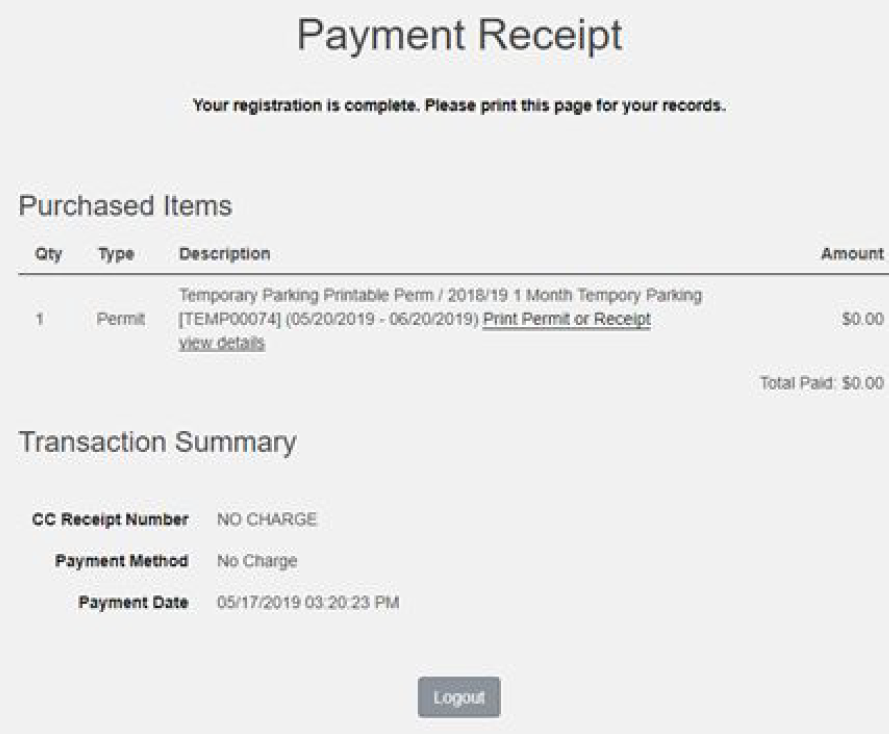
- You will receive a confirmation that looks like this:
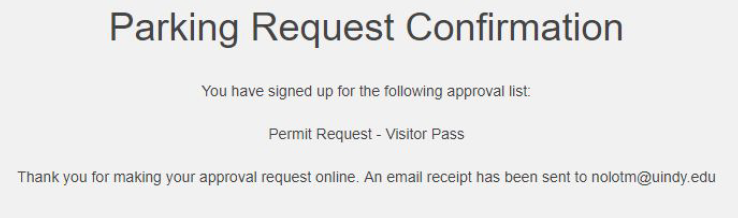
You will also receive an email confirming that your request has been received by the UIndy Police Department.
Accessing and Printing Your Temporary Parking Pass
Once the request has been processed and approved, you will receive an email with instructions on accessing and printing your visitor temporary parking pass.
- Access the UIndy Parking Portal and login to your account.
- Click on Permits > Get Permits on the top left side of the screen.
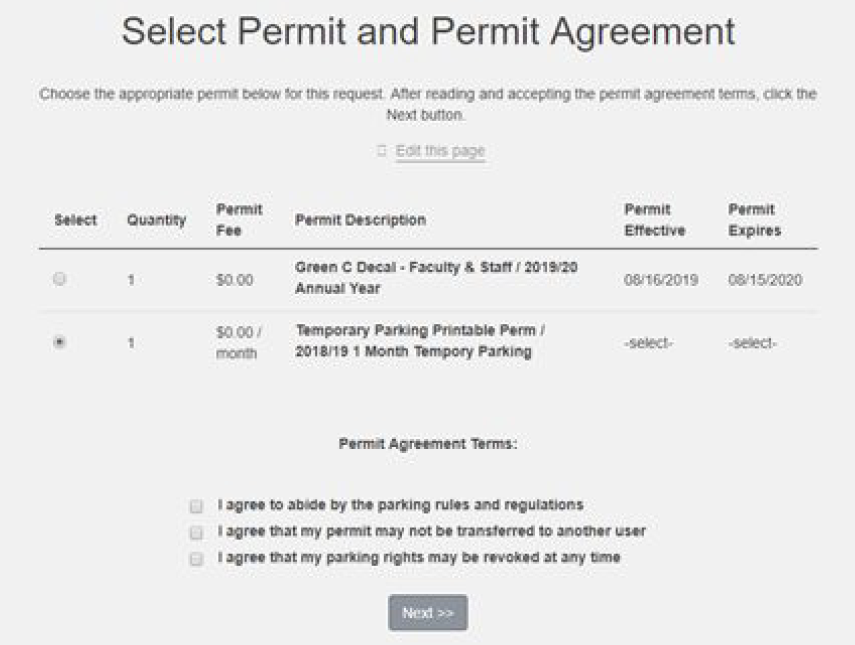
- Select your Temporary Parking Permit. Agree to the Permit Agreement Terms and click Next.
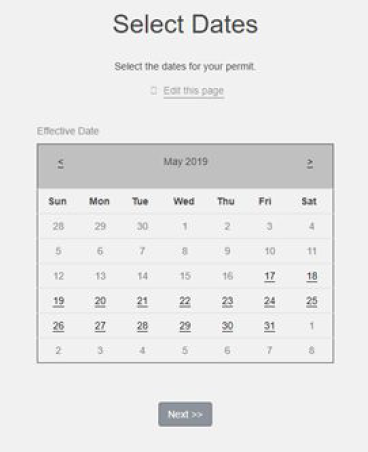
- Select the first day that you will be using your temporary parking pass and click Next.
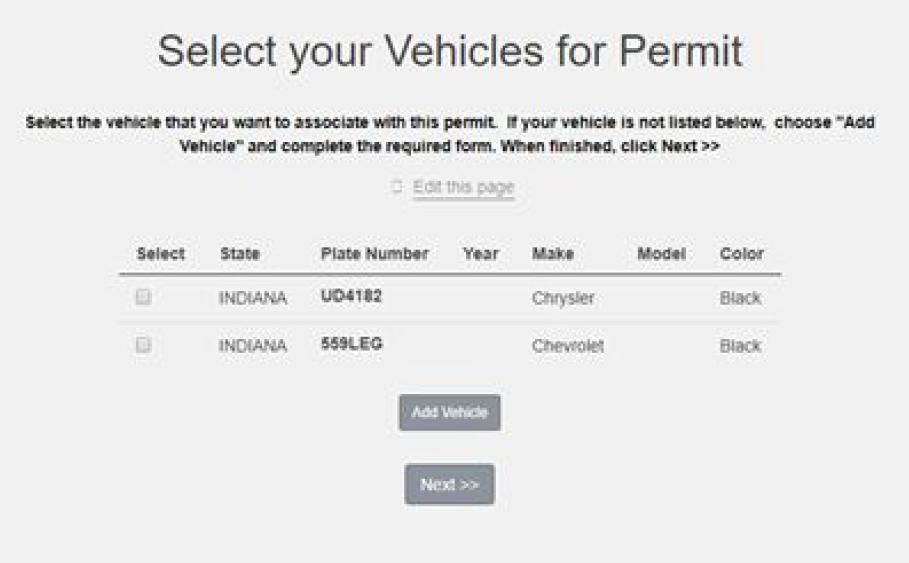
- Click on Add Vehicle and click Next. Follow the instructions for adding the required information on the vehicle that will be associated with the temporary parking pass.
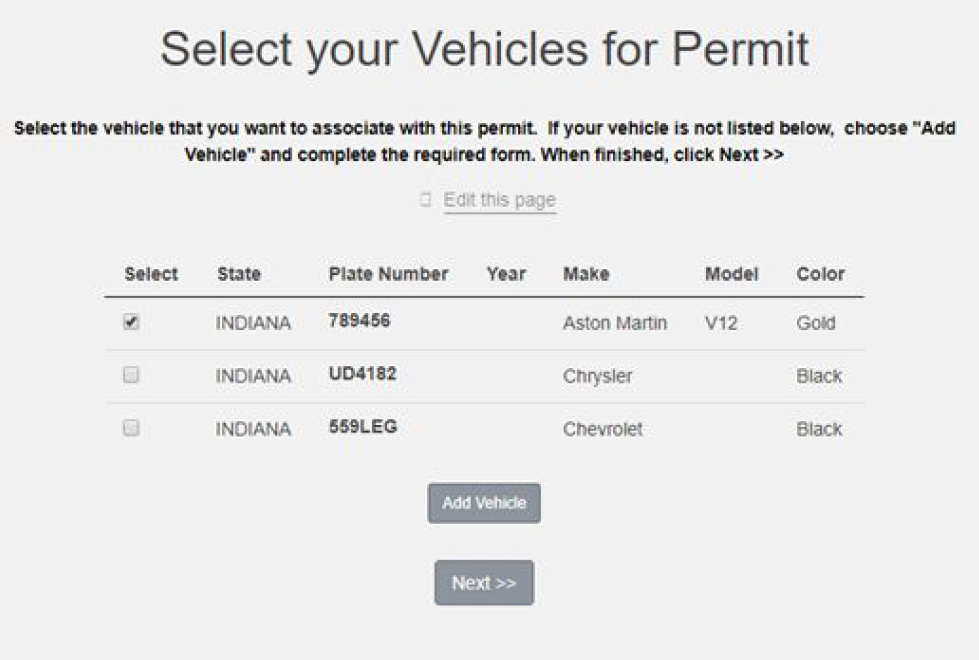
- Select the vehicle that will be associated with the temporary parking Click Next.
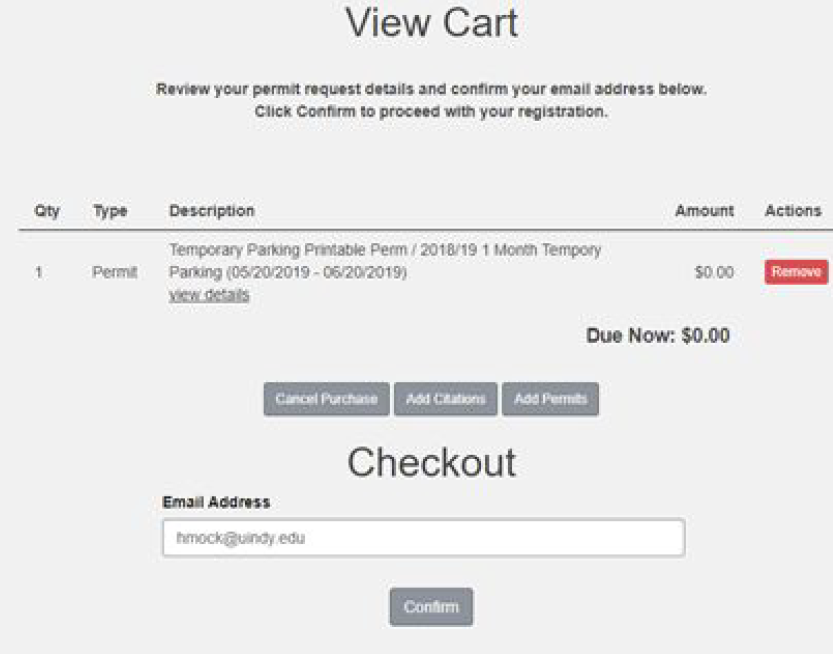
- Verify that your email address is accurate and click Confirm.
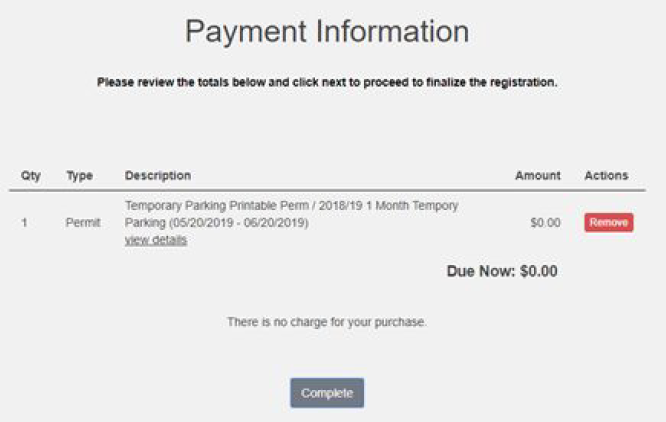
- Click Complete from the Payment Information screen.
- Click on the Print Permit or Receipt Follow the instructions to complete the printing process. Click on the Logout button when finished.
- Place the printed parking pass on the passenger side dashboard so that it is clearly visible.
Questions? Email uindyparking@uindy.edu or call 317-788-3386.